Getting Started with VIM for 3ds Max
Overview
VIM for 3ds Max enables you to bring projects exported as VIM files from Autodesk Revit, Navisworks, or IFC files into Autodesk 3ds Max. You can transfer projects quickly and easily from Revit for rendering workflows in 3ds Max. The optimized VIM file format allows you to skip the traditional import optimization process, saving valuable time and effort.
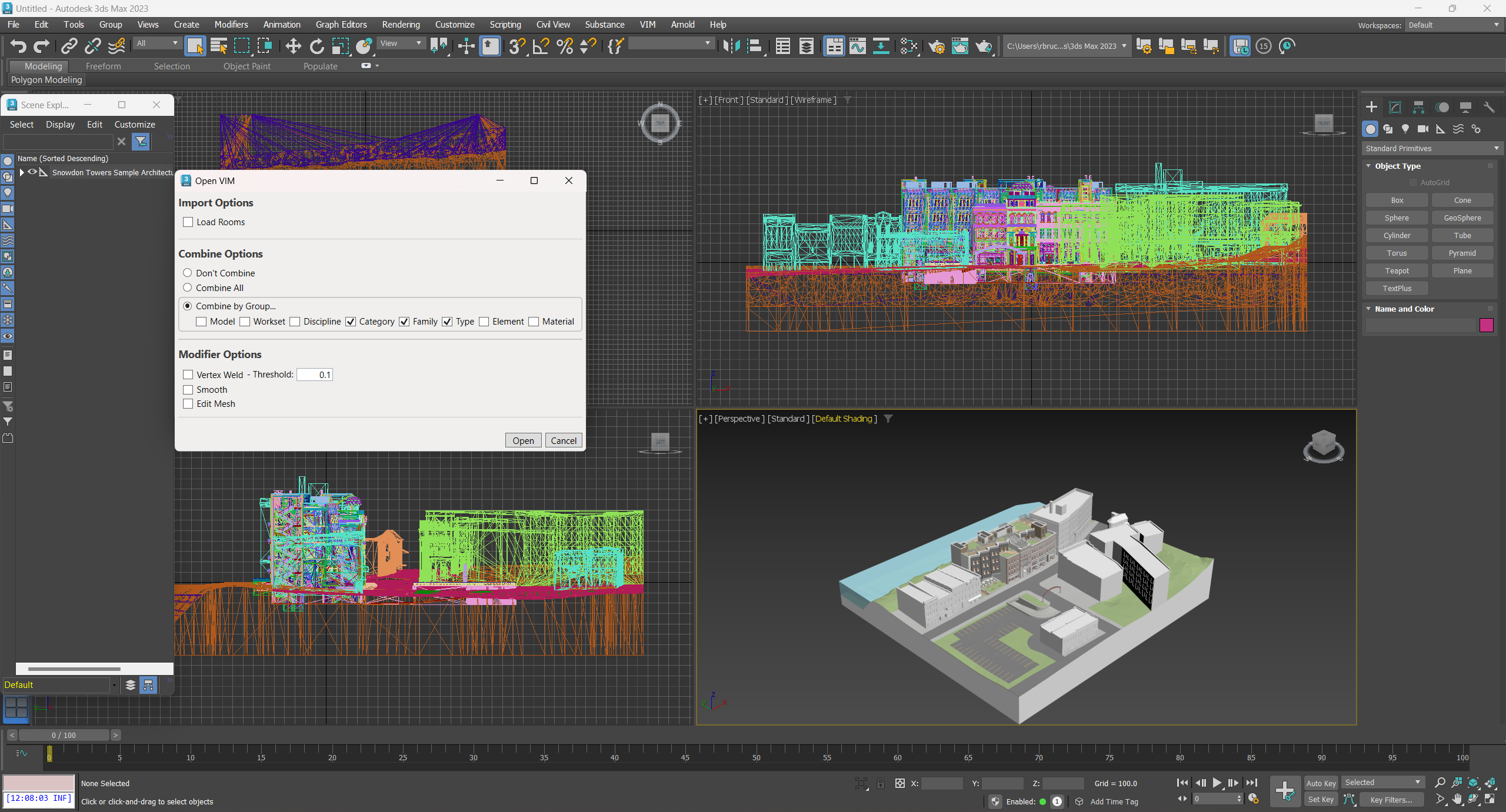
VIM for 3ds Max provides a powerful and efficient solution for architects, engineers, and designers to visualize buildings in Autodesk 3ds Max.
Please see the Releases to download the VIM 3ds Max Installer.
Installing VIM for 3ds Max
To install the VIM for 3ds Max you must have the VIM-3dsMax-Setup file. You must also have a supported version of 3ds Max installed. The VIM platform currently supports Autodesk 3ds Max 2019-2025.
-
Double-click on the VIM-3dsMax-Setup-vx.x.xx.exe file.
-
Follow the instructions in the VIM 3ds Max Importer Setup dialog.
The VIM for 3ds Max plugin binaries are installed in the Windows user AppData folder:
C:\Users\<username>\AppData\Local\VIM\3dsMaxBridge\<year>\
How to Import a VIM File into 3ds Max
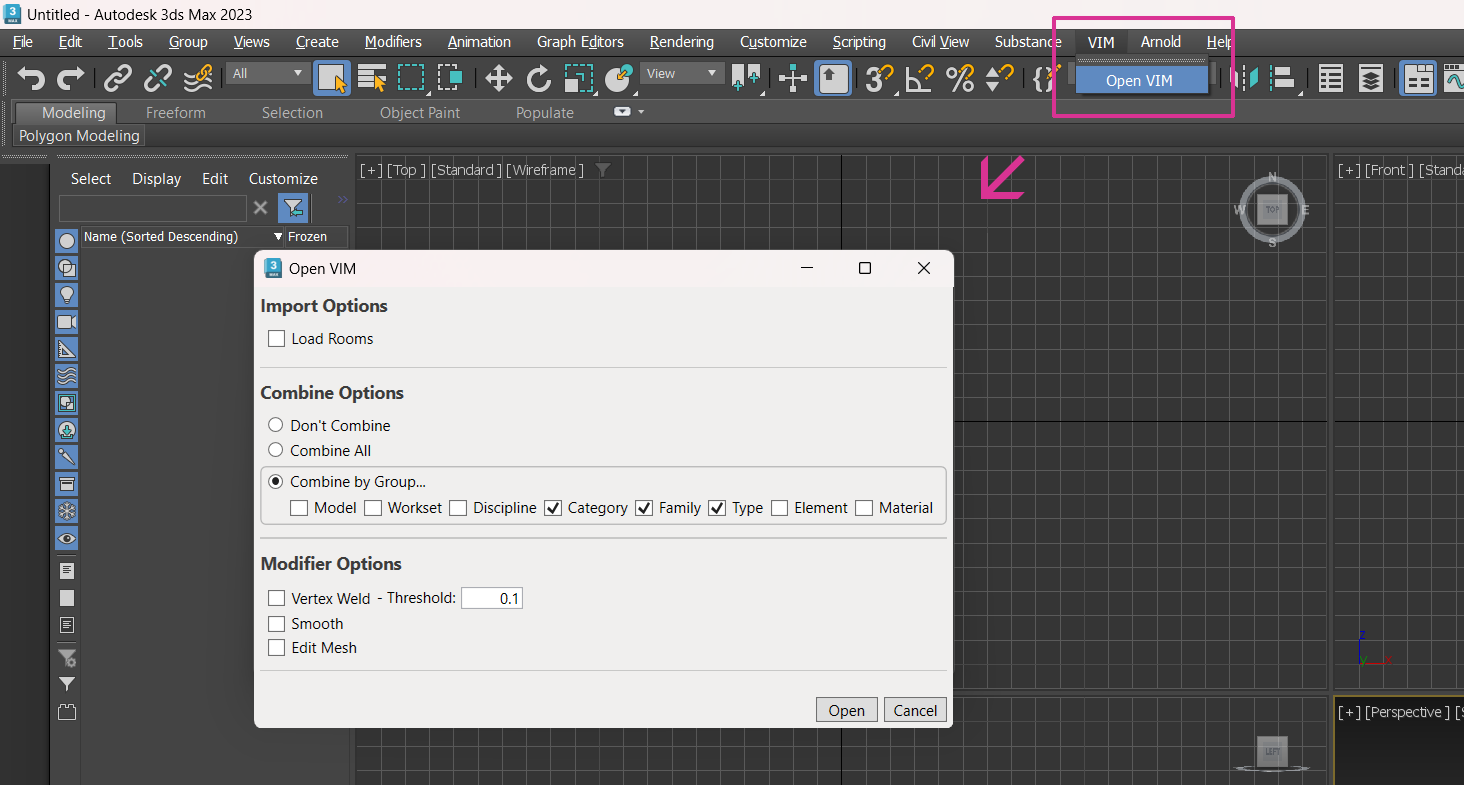
Please follow the steps below to import a VIM file into 3ds Max.
-
Open Autodesk 3ds Max.
-
Click on the VIM menu in the top bar and choose Open VIM.
infoIf you do not see the "VIM" menu in the top bar, check the "Installer Troubleshooting" page.
-
In the Open dialog, select a .vim file and click Open.
-
In the Open VIM dialog, choose from the following options:
-
Load Rooms — Loads the room geometries, if they exist.
-
Don't Combine — All objects are imported separately.
-
Combine All — All objects are combined into a single object.
-
Combine by Group — Objects are combined based on the enabled groups.
-
Vertex Weld — Combines all vertices within the specified Threshold value, in scene units, into a single vertex.
-
Edit Mesh — Allows you to manipulate meshes by adding the Edit Mesh modifier onto created objects.
-
Smooth — Helps to display faceted objects like columns as smooth surfaces by adding the Smooth modifier onto created objects. This can increase loading times if there are many objects in the scene.
-
-
In the Open VIM dialog, click Open.
-
When the Success message is displayed in the Open VIM dialog, click Done.