Getting Started with VIM for Navisworks
Overview
The VIM Navisworks Exporter addin enables you to export VIM files from Autodesk Navisworks.
How to Export a VIM file from Navisworks
Please follow the steps below to export a VIM file from Revit.
-
Ensure you have the VIM Flex Installer downloaded and installed. It includes the VIM Navisworks Exporter addin.
-
Open your project in Autodesk Navisworks.
-
Select the parts of the model hierarchy you wish to export.
- If your selection is empty, all visible items will be exported.
-
Click on the VIM ribbon item in the top bar.
-
Click on VIM Exporter
-
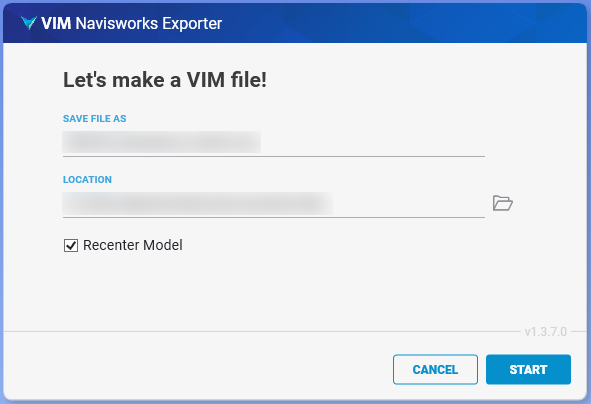
Choose where you want to save your VIM file.
-
Set Recenter Model as desired.
-
When enabled, the resulting VIM file will be re-centered to the origin based on its bounding box dimensions to prevent graphical artifacts if the Navisworks model is positioned very far from the origin.
EXPORT TIPDisable "Recenter Model" if you are exporting different parts of the model to be merged together later in VIM Enterprise or in Autodesk 3ds Max.
-
-
Click Start to export the model.
-
Upon completion, press Open VIM to open the VIM file in VIM Flex