Explore Workflow
Overview
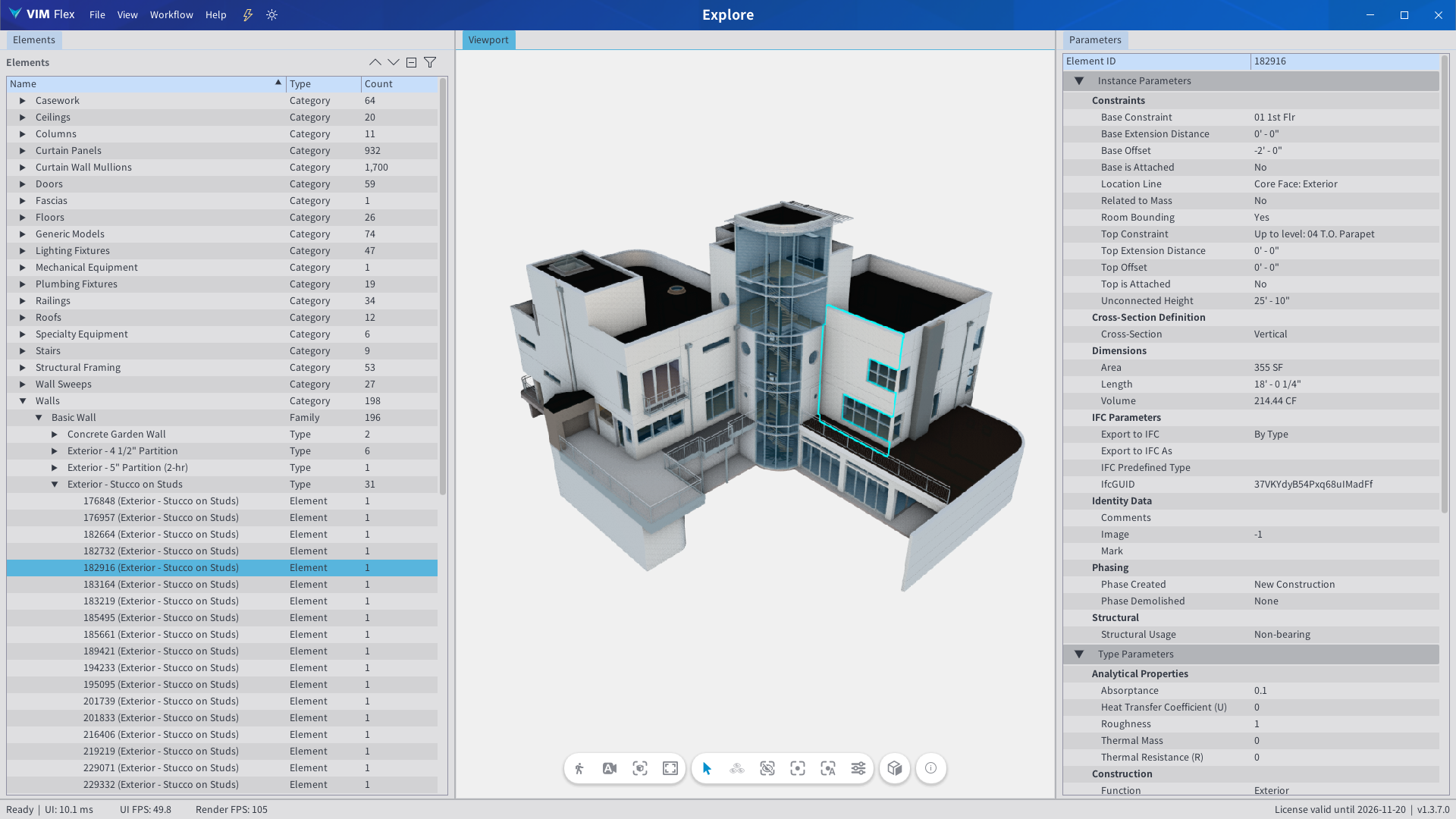
The "Explore" workflow is shown by default when you open a VIM file. This workflow is free and does not require a license.
You can use this workflow to:
-
✅ Inspect the model with the viewport controls
-
✅ Select elements to view their properties. The "Properties" tab on the right displays the properties of the first item in your selection.
-
✅ Get customizable element counts by group.
Element Groups
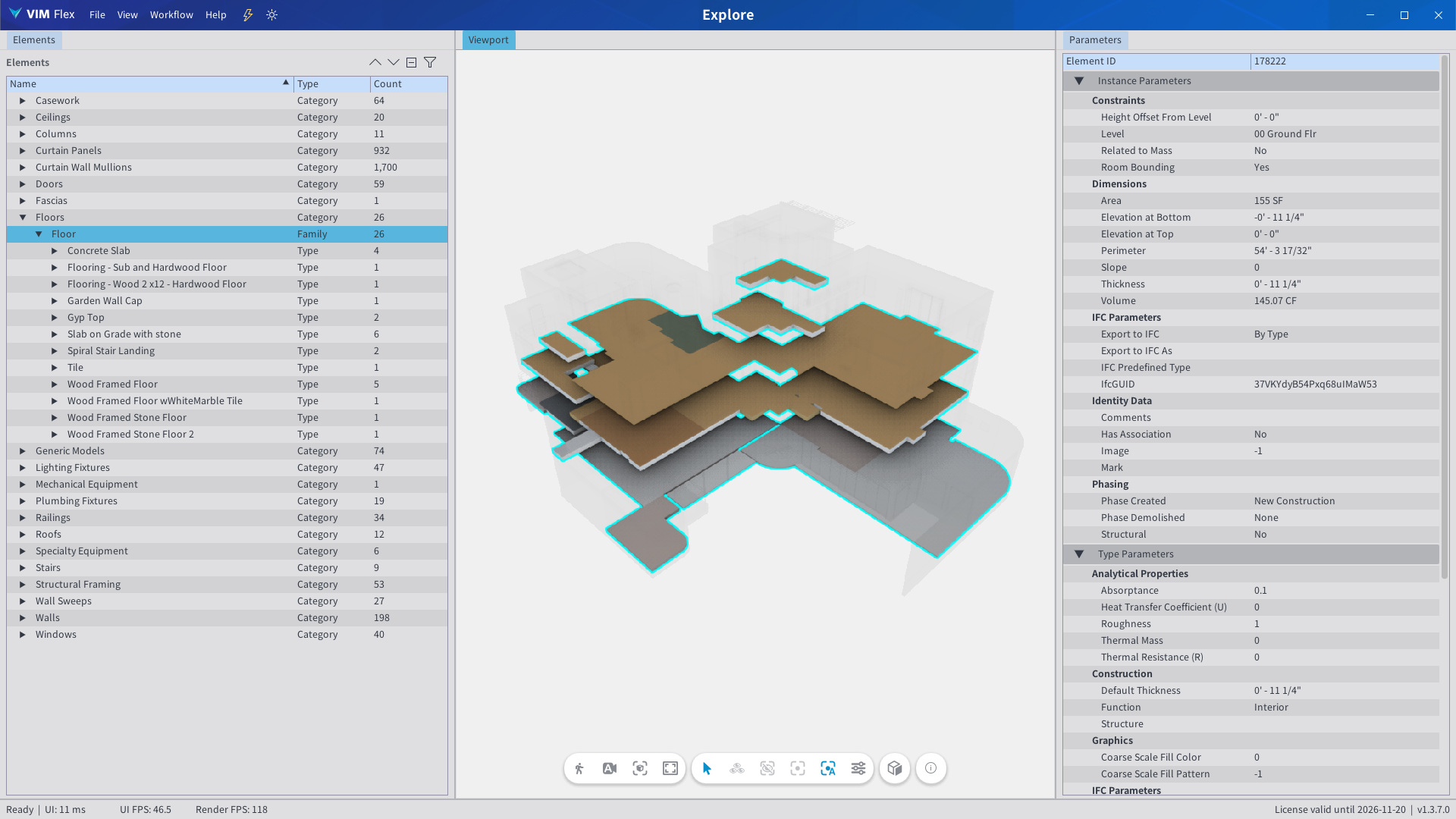
By default, the elements in the tree view are grouped by Category, Family, and Family Type. The "Count" column contains the number of elements in each group. You can click on the items in the tree view to expand each group and navigate all the way down to the individual element.
Adding a Group
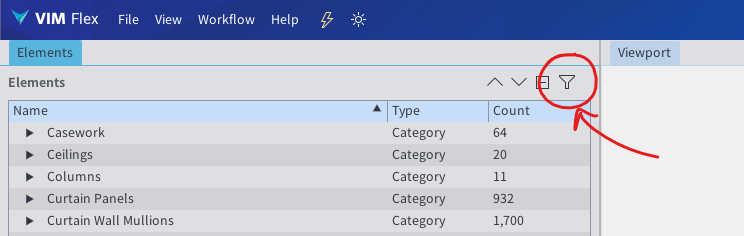
Click on the filter button above the tree view.
The checkboxes in the list represent the active groups in the tree view.
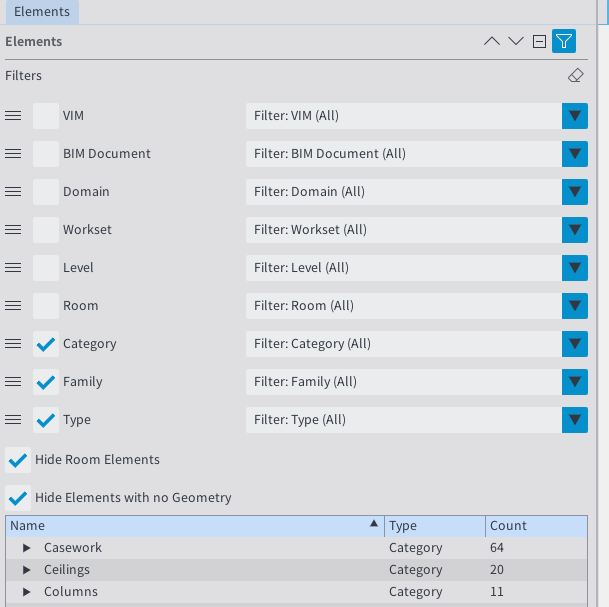
Enable the "Level" checkbox to group elements by Level. The remaining checkboxes will continue to group the elements by "Category", "Family", and "Type".
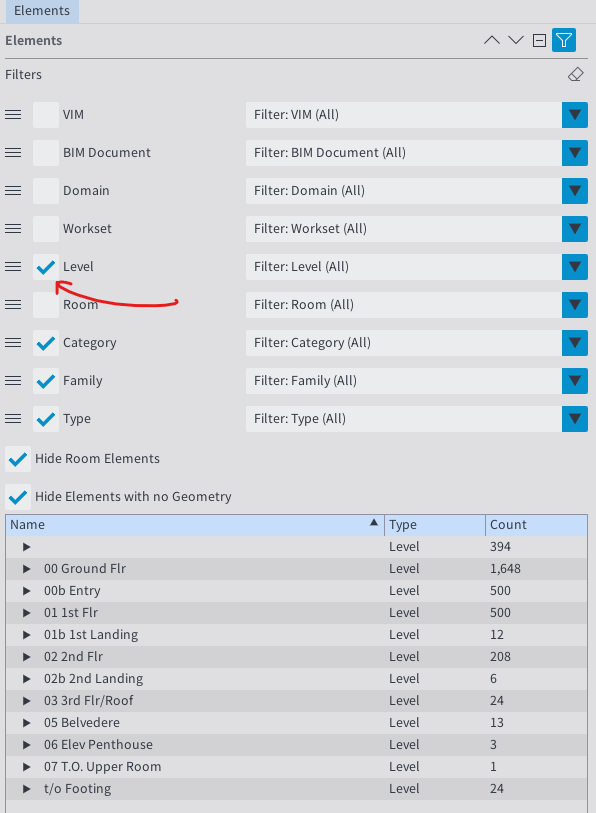
The "Count" column now contains the number of elements in each Level.
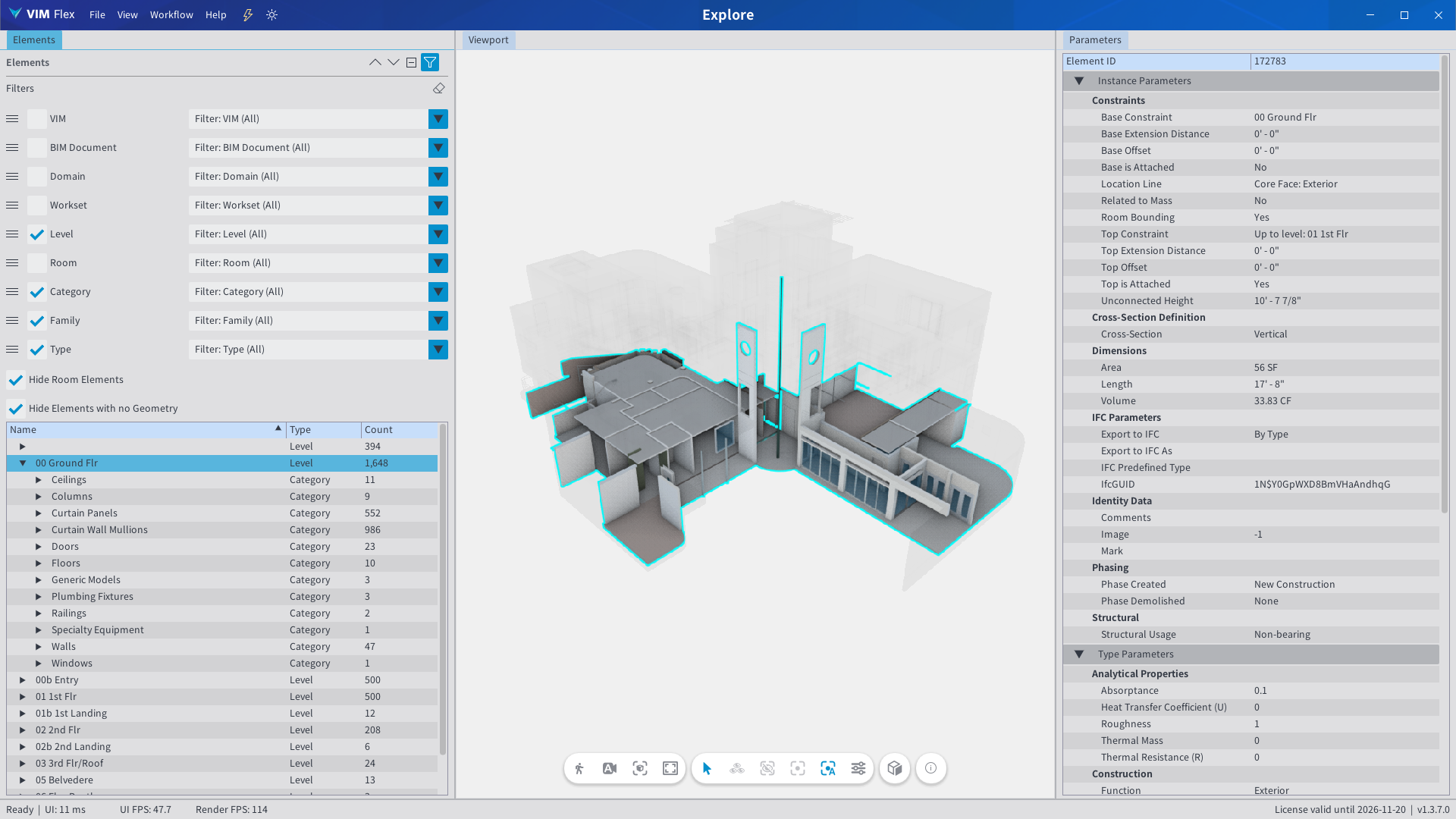
Click on a Level in the tree view to select the elements on that Level. You'll notice that the Categories of each element are available under their respective levels.
-
🔍 Grouping by Level and clicking through each one may reveal elements which have been modeled incorrectly on some levels!
-
🤔 Some elements may not be directly assigned to a Level in Revit. These will appear in the empty Level slot (for example: hosted elements).
Ordering Groups
You can further customize your tree view and your element counts by re-ordering your groups.
To achieve this, click and drag the grip controls next to each checkbox and move them to the desired slot.
In the clip above, we moved the "Category" group above the "Level" group, letting us inspect the doors per level.
Resetting Groups
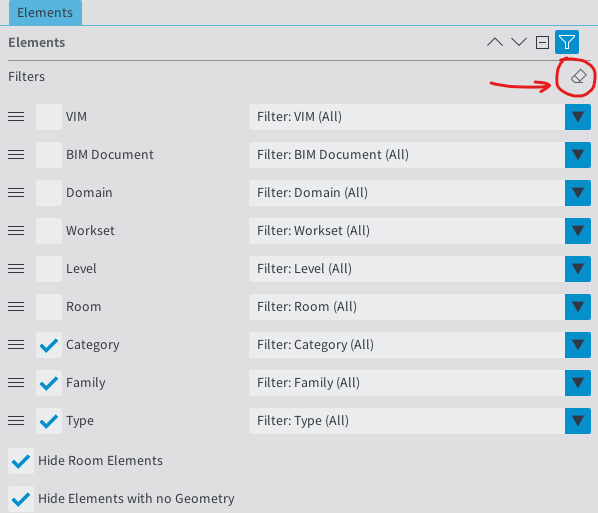
Press the eraser button to reset the groups to their default settings.
Grouping Reference
VIM
The VIM group represents the top-level VIM file.
BIM Document
The BIM Document group contains the main document and the linked documents which have been stored in the VIM file.
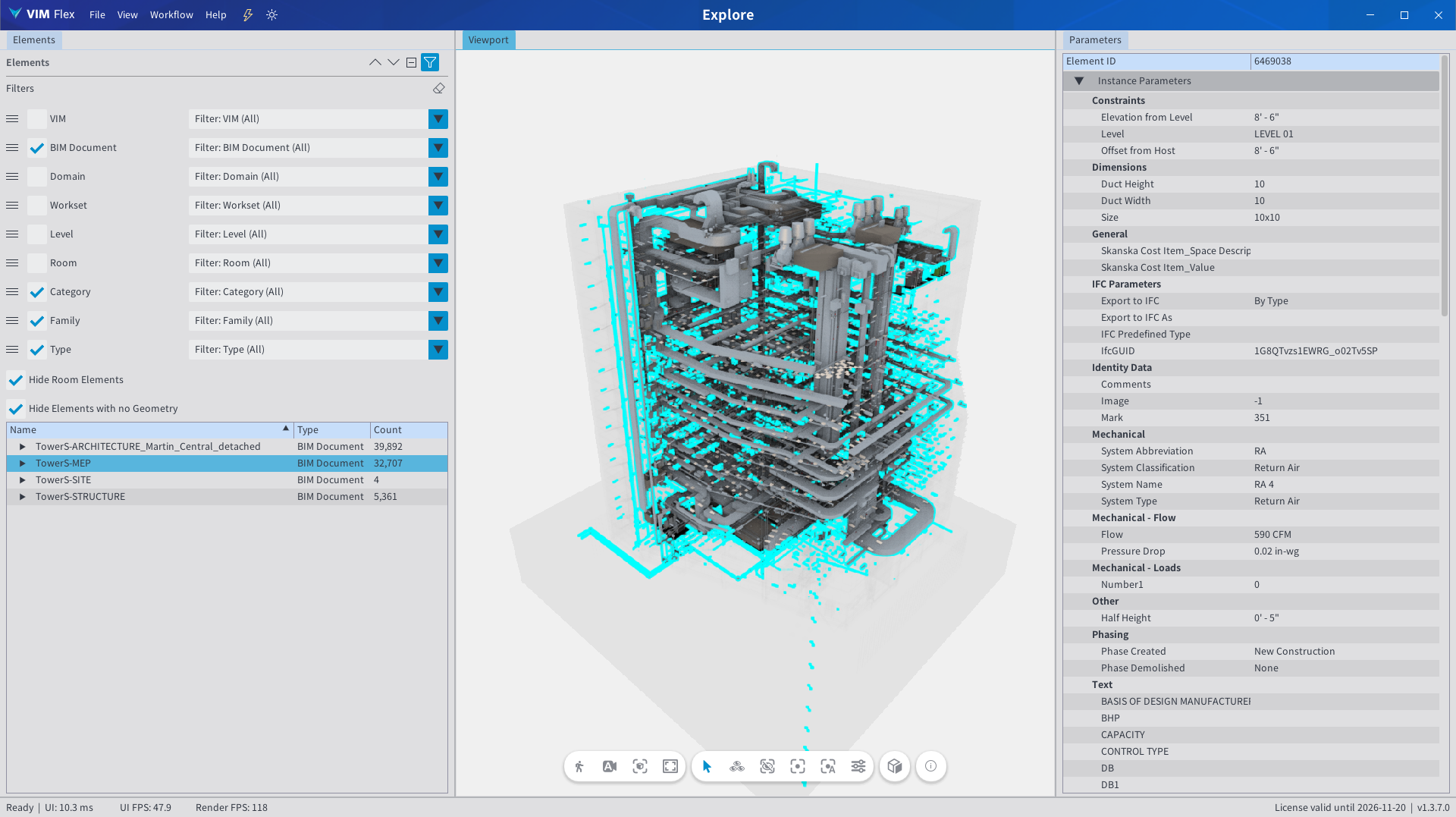
In the screenshot above, the BIM Document group is enabled. This lets us select elements per document (for example, the MEP model).
Workset
The Workset group is based on the Revit Workset association of each element.
Level
The Level group represents the direct Level association of each element. Elements which are hosted on other elements will appear without a level.
Room
The Room group represents the direct Room association of each element.
Category
The Category group represents the Category of each element.
Family
The Family group represents the Family of each element.
Type
The Type group represents the Family Type of each element.
Option: Hide Room Elements
Controls whether room element geometry is rendered. Enabled by default; room elements may occlude other elements.
Option: Hide Elements with no Geometry
Controls whether conceptual elements like as materials and phases are hidden in the tree view. Enabled by default to simplify the tree view.