Mesh Audit Workflow
Overview
The "Mesh Audit" workflow lets you assess the geometric complexity of the meshes in your model by coloring them from green (adequate complexity) to red (high complexity). Meshes are composed of many triangular faces and correspond to the 3D geometric representation of your elements.
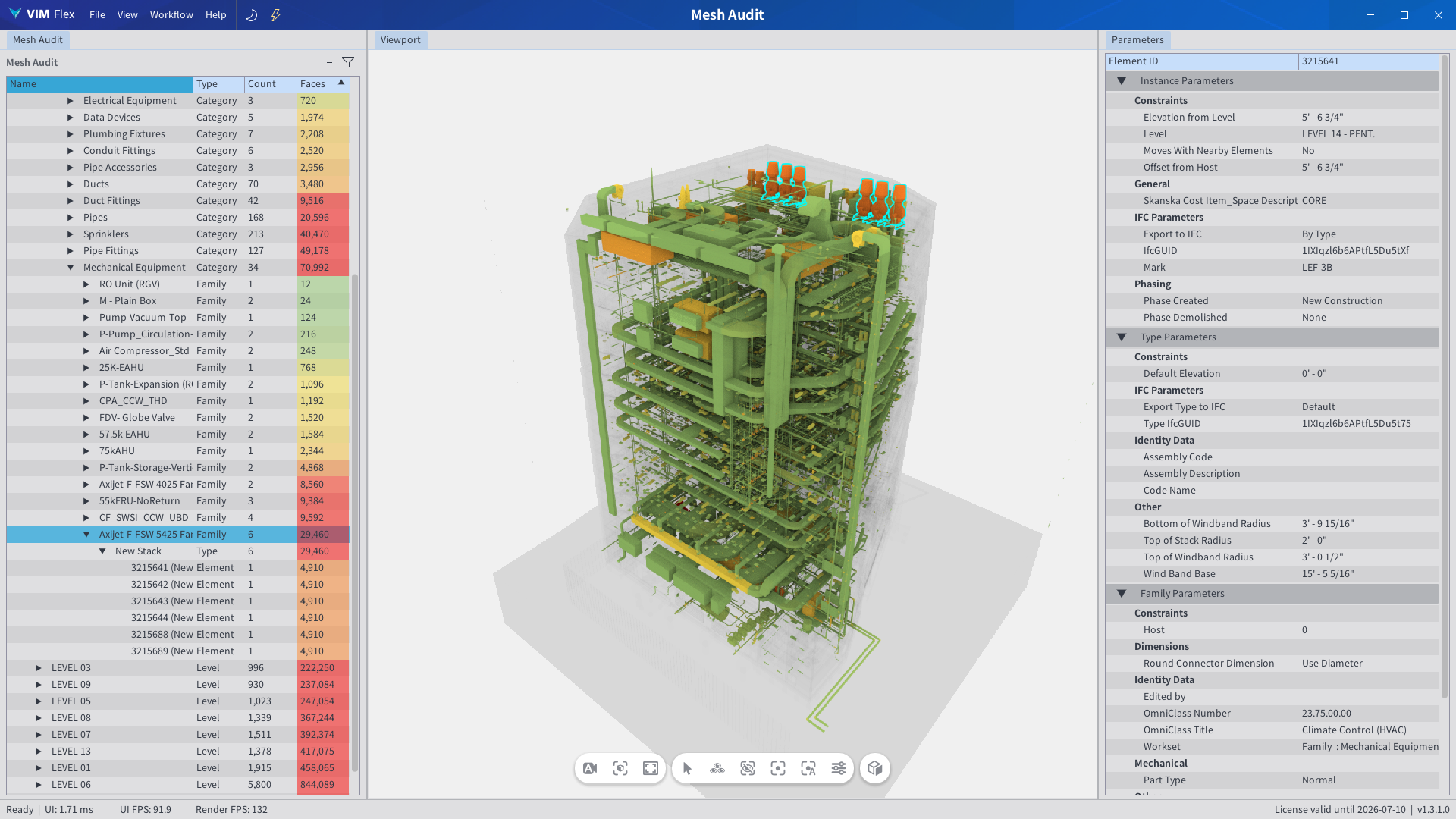
Highly detailed meshes containing an excessive number of triangular faces (high geometric complexity) can negatively impact the performance of design authoring tools like Revit and Naviswork. These can result in:
-
Larger file sizes which make you wait longer while you open and share your model.
-
Degraded user experiences, slowing you down while you design and review your model.
If you find yourself waiting for your large projects to open in Revit, we recommend using the "Mesh Audit" workflow to identify the most complex elements to replace.
How to Audit your Meshes
Please follow the instructions below to use the "Mesh Audit" workflow.
-
Please ensure VIM Flex has been upgraded with valid license key.
-
In the top menu bar, go to "Workflow" > "Mesh Audit".
-
If you have not already done so, open a VIM file by going to "File" > "Open" in the top menu bar.
-
The elements will be colored from green (adequate complexity) to red (high complexity).
-
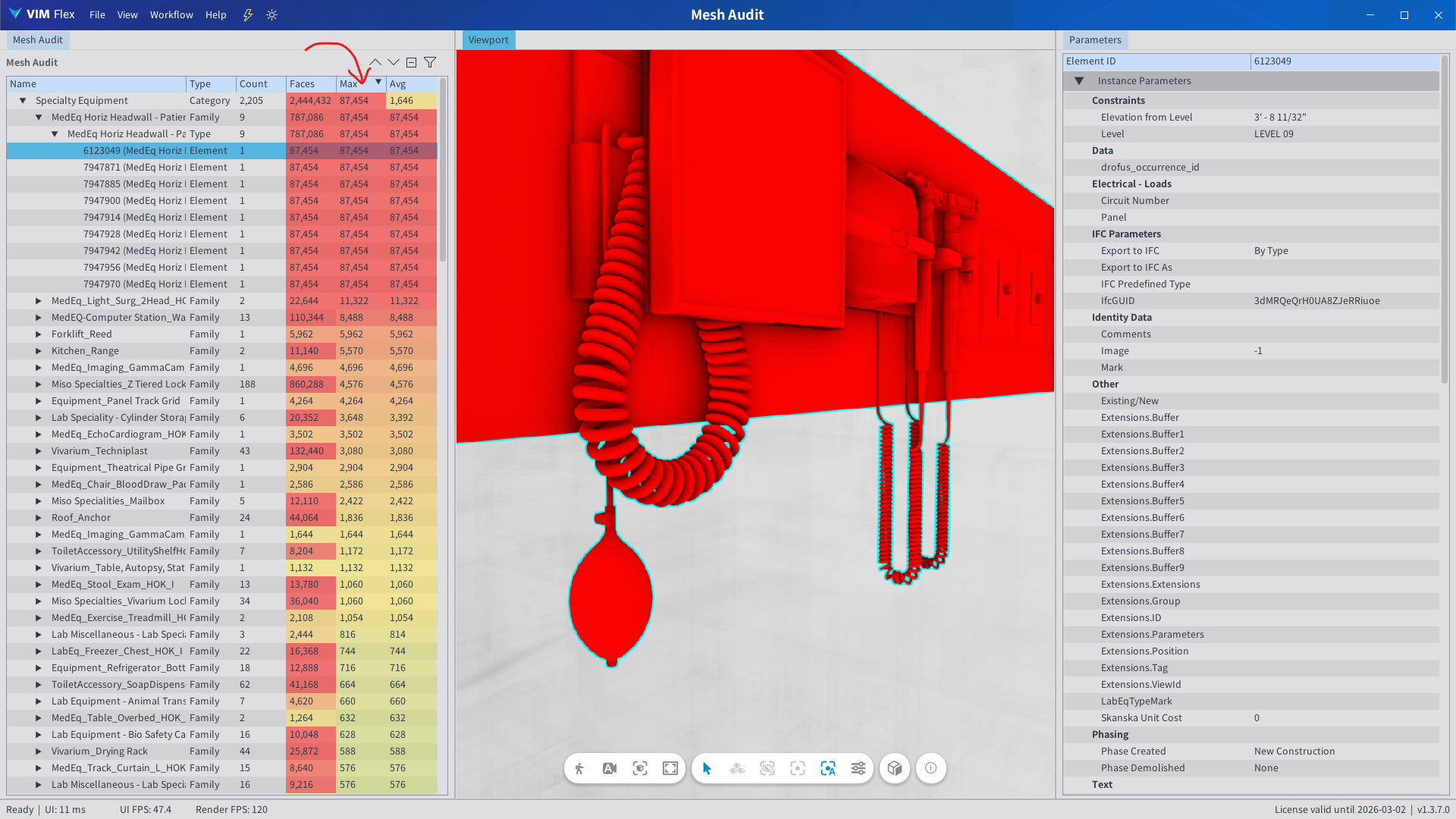
You can find the most complex meshes by sorting the "Max Faces" column in descending order, then expanding the tree view down to select the individual element.
-
You can also use the sectioning tool to visually inspect the complexity of your elements. Look for red elements as you section the model