Getting Started with VIM for Revit
Overview
The VIM Revit Exporter addin enables you to export VIM files from Autodesk Revit.
How to Export a VIM file from Revit
Please follow the steps below to export a VIM file from Revit.
-
Ensure you have the VIM Flex Installer downloaded and installed. It includes the VIM Revit Exporter addin.
-
Open your project in Autodesk Revit.
-
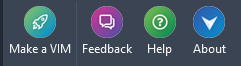
Click on the VIM ribbon item in the top bar.
-
Click on Make a VIM
-
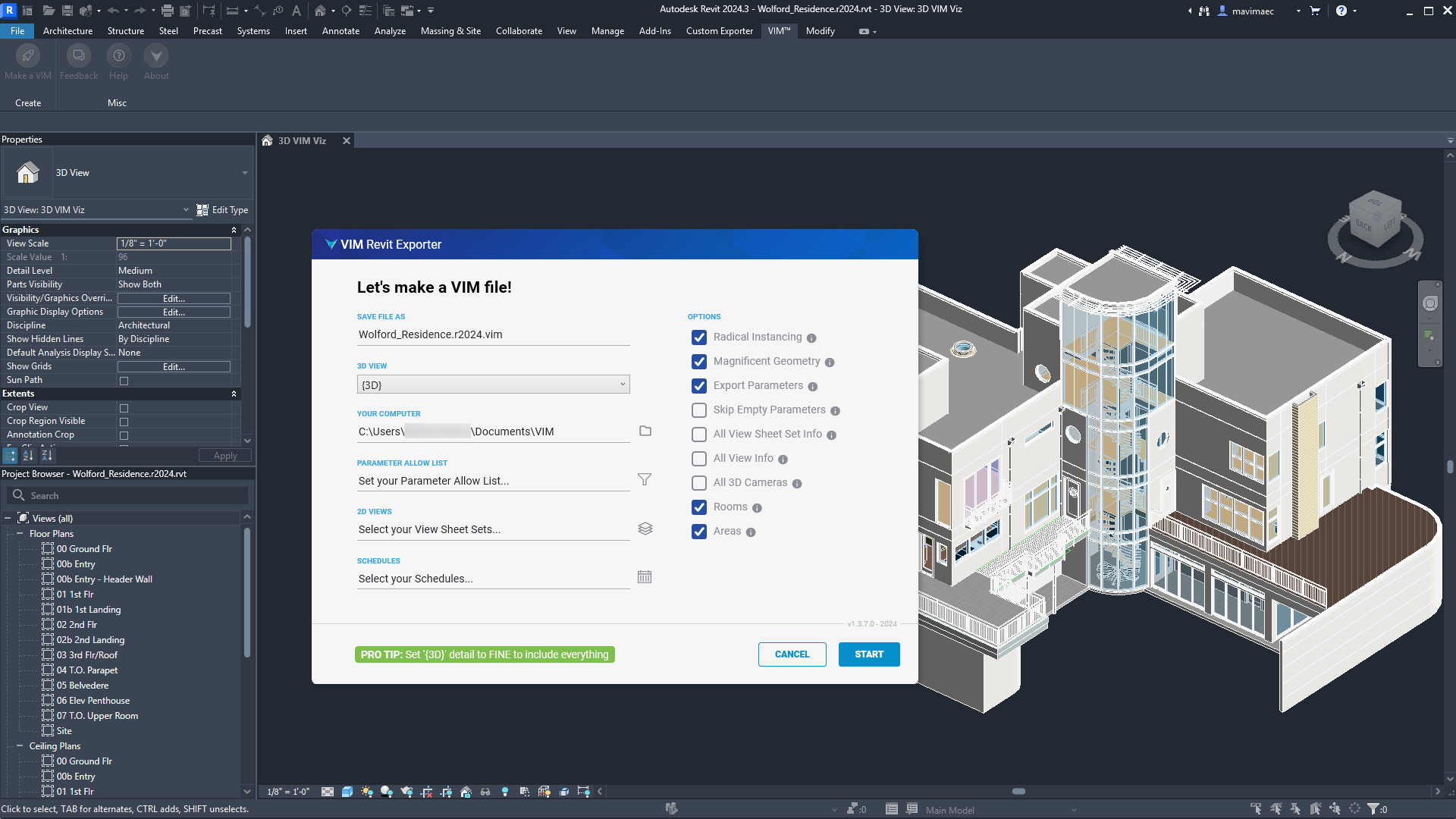
In the VIM Revit Exporter dialog, set the options below as desired, then click Start.
-
3D View - Lists the 3D views defined in Revit. The exported BIM data and rendered project will be limited to the selected view.
-
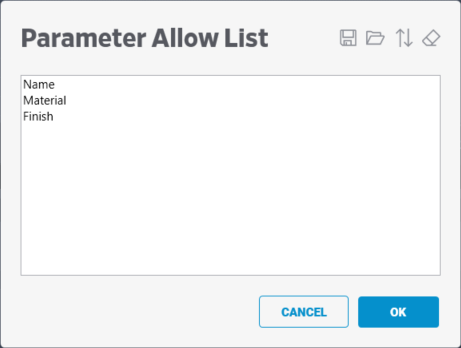
Parameter Allow List - Enables you to define a list of parameters to include in the export. This can save time when exporting larger projects. The Parameter Names must match the Family, Instance, or Type parameter names in the Revit project. You can save parameter lists as text files and load lists from saved text files.
 info
infoUnsaved parameter lists are not saved when you close Revit.
-
2D Views - The selected View Sheet Sets and related data will be included in the VIM file and available for Power BI reports.
-
Schedules - The selected Schedules and related data will be included in the VIM file and available for Power BI reports.
-
Radical Instancing - Advanced deduplication helps extremely large-scale projects to run smoothly on low-powered devices.
-
Magnificent Geometry - Objects are tessellated with clean quads, just how real-time engines expect them.
-
Export Parameters - Enabled by default. Exports all element parameters from the Revit project. If unchecked, no element parameters are exported, only the geometry data.
EXPORT TIPDisable "Export Parameters" to quickly export a VIM file for visualization in Autodesk 3ds Max, or in other applications where element parameters are not required.
-
Skip Empty Parameters - Skips all empty parameters to streamline the export process.
-
All View Sheet Set Info - Exports information about all the view sheet sets, view sheets, and views in the document. Useful for auditing in Power BI.
-
All View Info - Exports information about all the views in the document. Useful for auditing in Power BI.
-
All 3D Cameras - Exports the names of the 3D and 2D views defined in the Revit project, as well as the coordinates and orientations of the views.
-
Rooms - Exports all the room geometry in the document.
-
Areas - Exports information about all the areas in the document.
-
-
Click on Open Locally to open the file in VIM Flex.